Saturday, February 9, 2013

Teamcenter SOA : Detail Steps for SOA Creation


This blog provides detail steps of creating your own SOA. The SOA service provides all the query  present in Teamcenter Query Builder. The SOA has one Operation which gat all query object in Teamcenter. The Operation doesn't take any input argument, it return list of Query Objects encapsulated in custom Data Structure.


Detail Steps :
  1. Create a new service library in BMIDE Extensions tab by selecting Project->Code Generation->Services

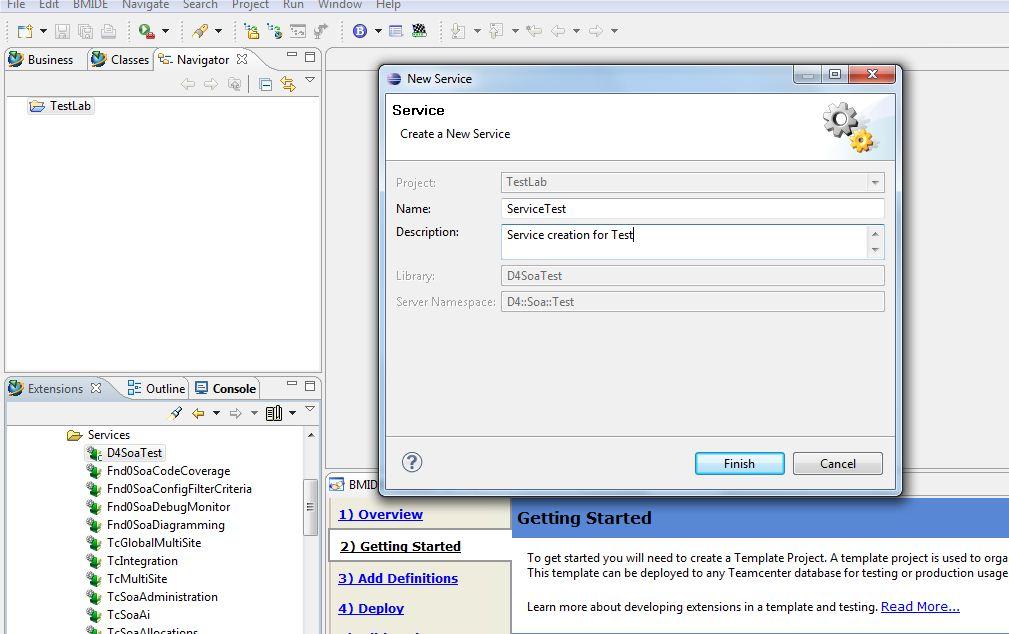
  1. Select the newly created service library (Ex: D4SoaTest) and create new service
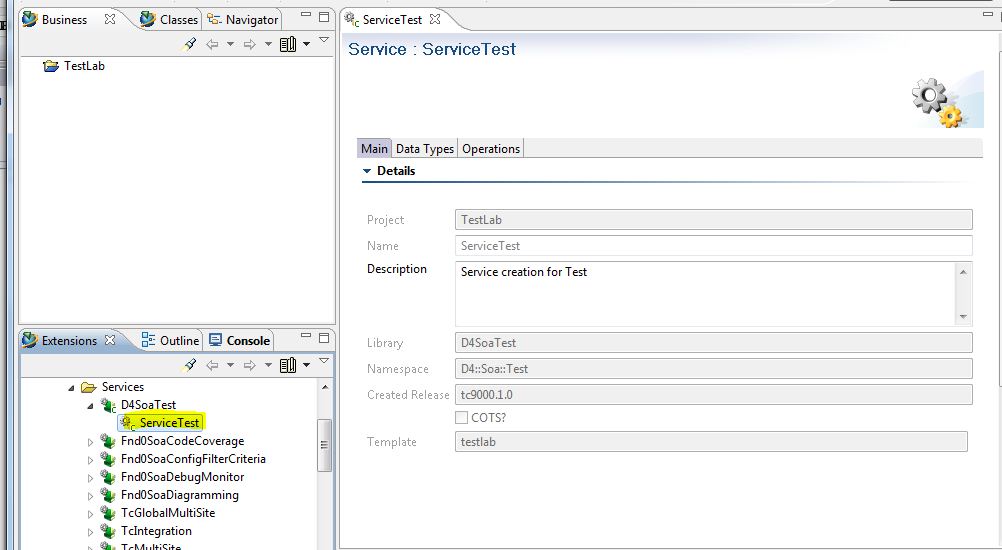
  2. Open the new service (Ex: ServiceTest)
  3. Define the DataTypes and Operations as per the requirement. Ex: Operation is to get all the saved queries. Define Data Types as below
Define data type TestQueryObject

    1. Click on Add button in the Data Types tab
    2. Select Structure and click Next
    3. Enter name as TestObjectQuery and description for it
    4. Select DataType elements by clicking Add button
query->Teamcenter::ImanQuery [holds the query tag]
queryname->std::string [holds the name of the query]
querydescription->std::string [holds the description of the query]

Define data type TestGetSavedQueriesResponse – Used for as return data type in operation which returns vector of query objects holding query tag, name and description

    1. Click on Add button in the Data Types tab
    2. Select Structure and click Next
    3. Enter name as TestGetSavedQueriesResponse and description for it
    4. Select DataType elements by clicking Add button
queries->Vector of TestQueryObject
services->Teamcenter::Soa::Server::ServiceData

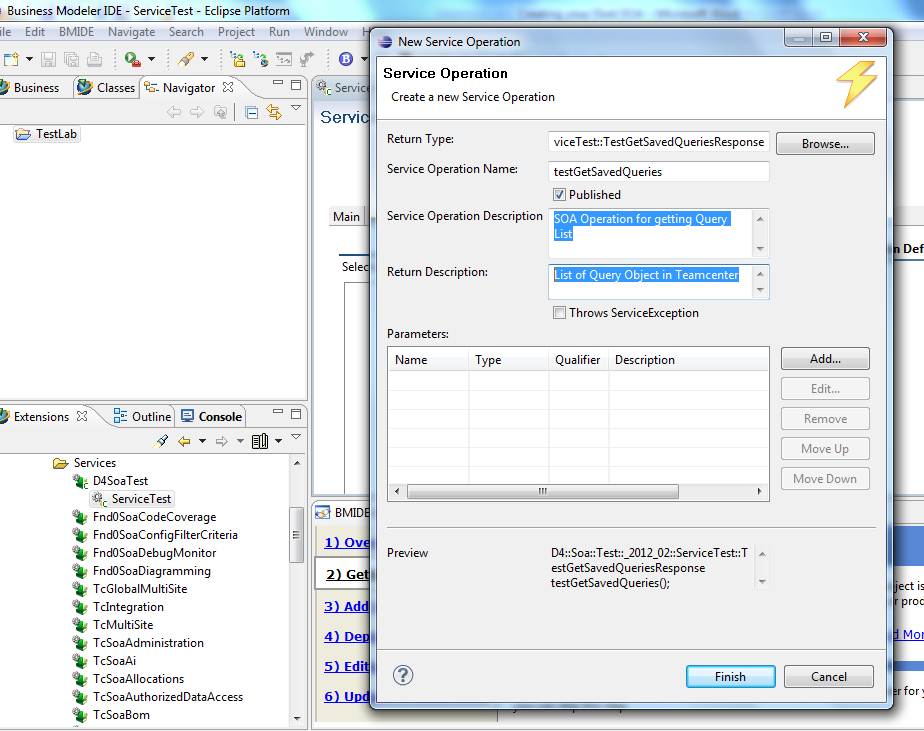
  1. Create Operation using the above defined data type. Select Operations tab of the service (Ex Test Service). Click Add on to create new operation.
    1. Click on Browse button of New Service Operation dialog
    2. Select D4::Soa::Test::_2012_02::TestService::TestGetSavedQueriesResponse as the return data type
    3. Enter Service Operation Name: testGetSavedQueries
    4. Enter Service Operation Description: SOA Operation for getting Query List
    5. Enter Return Description: List of Query Object in Teamcenter
    6. Click on Finish


  1. Once the Operation is created, in Operation Tab when Service is opened.
  2. Save the datamodel.
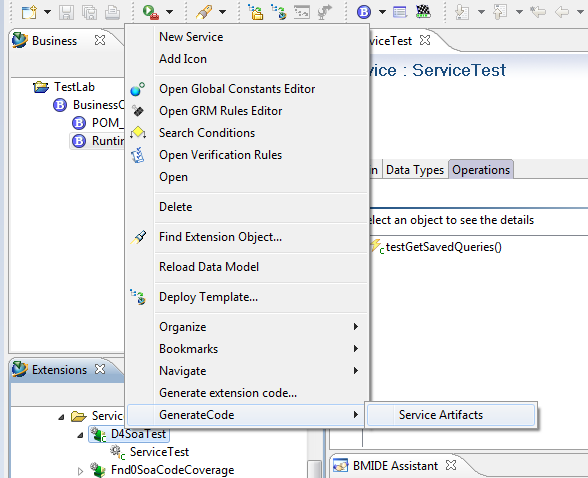
  3. Select the library created (D4SoaTest). Select  GenerateCode->Service Artifacts

  1. Check the Console view to know if the code generation is successful or errors in other case.
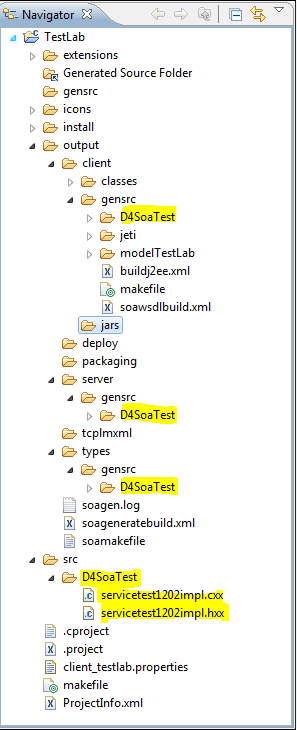
  2. Source and header files corresponding to each service are created. They are placed in the following path in Navigator view:
Project->src->server->LibraryName
Ex: AccentureTest->src->server->D4SoaTest (This folder contains the files which need to be implemented by the developer)
Project->output->client->LibraryName  - This contains the auto generated files for the client (no changes required to these files)
Project->output->server->LibraryName  - This contains the auto generated files for the server(no changes required to these files)
Project->output->types->LibraryName  - This contains the auto generated files for the data types that are created. (no changes required to these files)
Inferences:

  1. Name of the service library:    D4SoaTest
  2. Services in the library D4SoaTest:

  1. TestService

  1. Operations in the service by name TestService:

  1. testGetSavedQueries


  1. Open the source file and enter the required code. Shown below is the file generated in the step #8. Operation ‘testGetSavedQueries’ is high lightened for a quick notice.


  1. Build the project. Dlls are generated in
    1. Project\output\client\jars  (Project\output\types \lib if its c++ bindings) – jars files to added to java client classpath
    2. Project\output\server\lib (libraries which would be copied to Teamcenter Server TC_ROOT\bin)
    3. Project\output\types\jars (Project\output\types\lib if its c++bindings) contains the types definition  – jars files to added to java client classpath
Note:-

  1. Check console to see a successful build message
  2. libD4soatypes.dll under types\lib and server\lib are same.
  3. Ensure the dependant libraries are added to the library definition. Ex: query module is used in the D4SoaTest library and hence added to the D4SoaTest library definition.

  1. Deploy the data model.  This will deploy the library, service and operation definitions in the template to the database as well as it copies the built server libraries to TC_ROOT\bin. Ex Project\output\server\lib to TC_ROOT\bin

You can now call your SOA at client site in a same way as you called sample SOA. 

Teamcenter SOA : Create You Own SOA

In my last two blog I discussed about basic fundamental of SOA and how to use OOTB SOA in client side. In this blog we will discuss about basic for creating your own SOA. Usually new SOA service is required to be created when you don’t find OOTB SOA satisfying your requirement or what to have the service behavior in different way. Following are the guideline for creating your own SOA.
1)      Check whether you can achieve the required result at client side by using OOTB SOA.
2)      Analyze the desire state of transaction between Client and SOA server layer. For example you have to look whether transaction should be committed in one request or multiple request provide by OOTB SOA is acceptable.
3)      Analyze what service you want to implement. Whether it will be single request base or multiple requests which satisfy the use case.
4)      Analyze what input to perform the service. This will help in defining input data type.
5)      Analyze what output will be provided for requested service and how the output will be used. This will also help in deciding whether you required having loose or strong binding.
Before You Start:
Before start you should understand some aspect of SOA service in teamcenter.
Loose vs. Strong Binding: The binding define how the data map between SOA server and Client.  Loose binding mean Key/Value pair mapping as string map of data and its value. Whereas strong binding means the client data model is populated with typed objects that correspond one-to-one with their server-side object type. Hence decision required to be taken based on use case. For example if SOA service is for creating some static reports then loose Binding can be good option and for integration strong binding is good option.
Data Type:
Data Type defined encapsulation of Data while creating a request for SOA service as well getting output from SOA service.  In SOA you can define data type either of Structure, Map or Enumeration. Meanings of this Data Types are same as in a programming language like C or Java. Structure defines set of basic data types encapsulated in structure. Similarly Map is data container.
Operations:
Operation defines set of function which will available to client for created a request for services to be performed. The SOA service can be either defined through single operation if it is a simple service or set of Operation if it is a complex use case.
Creating SOA services:
As you understand the basic building block of creating SOA, we are ready for creating your own SOA service in the BMIDE. The detail of steps of creating SOA service is given in this blog. Following are the steps of creating SOA service
1)      Define preference binding. For example for Java you can select loose or strong binding.
2)      Create new SOA service library or use existing if you already have one.
3)      Create new service under SOA service library.
4)      Define all the data type which will be used for SOA Operation.
5)      Defined all the Operations with define data type. The Operation will have input data type and return data types. Data Type can be either defined data type or OOTB data types.
6)      Generate code in BMIDE by selecting Generate Code -> Service Artifacts. This will create stub code for both server and client side (see step blog for detail).
7)      Implement the server side code for all defined operation in BMIDE. The stubs for all Operation is already created by BMIDE and only required to implement the business logic for the Operation.  Server side implementation is always in C++ and ITK API can be used for implementation.
8)      No implementation is required at client side.
9)      Build the BMIDE project. Jar file created for the client (if it is Java Binding) and dll for server.
10)   Deploy the server dll in TC_ROOT\bin directory.
11)   Implement custom SOA service in client side. The process is same as defined for OOTB service in the Blog. Only addition will be to add the client SOA jar file in the Class path for using Java client and client dll if using c++ binding.


The detail steps is given in Steps for creating SOA.
These close my series on Teamcenter SOA. I thanks my friend Bhaskar for introducing me to Teamcenter SOA Framework.
Hope this blogs will help good foundation for all people who want to learn Teamcenter SOA services  and serve as quick start on for using and creating own services.


See Also :


Sunday, January 6, 2013

Temcenter SOA : Sample SOA Code Setup

In this blog I will provide detail step for setting up sample SOA code provided in install image file under SOA zip file. Below steps is for Java SOA sample code.

1.       Unzip soa_client.zip from install image to TC_ROOT directory. It will create soa_client folder under TC_ROOT.
2.       Install Eclipse 3.6 and launch
3.       Add ClassPath variable for the root location of the soa_client folder.  
Open the Preferences dialog of eclipes (Window --> Preferences ... ).
Select the ClassPath Variable tab ( Java --> Build Path --> ClassPath Variables).  
Add the variable 'TEAMCENTER_SERVICES_HOME', set it to the root path of the 'soa_client' folder


4.       Import the project
Open the Import dialog ( File --> Import... )
Select Existing Project into Workspace (General --> Existing Projects into Workspace )
Click Next, then browse to .../soa_client/java/sample, select Finish

Note:- While importing FileManagement sample, FMS_HOME need to be added just like TEAMCENTER_SERVICES_HOME

5.       Compile the project 
If the IDE is not configured to Build Automatically, force a build of the project

6.       Execute the client application
Open the Debug/Run dialog ( Run --> Debug ...)
Select the HelloTeamcenter Java Application
The launch is configured to connect to the server on http://localhost:7001/tc to change this URI on the Args tab.

If the connection is http, ensure its pointing out to the right URI and this can be checked through Run->Debug Configurations-> Arguments

If it the connection is through iiop, it should be set as follows

-Dhost=iiop:localhost:1572/TcServer1


Note:- Only Java and C++ bindings work in 2-tier mode.

7.       Go through the files to understand how the services are being called and can be used in the custom solution. Refer my OOTB SOA Service Blog for basic understanding of sample code.
 See Also :

Saturday, January 5, 2013

Teamcenter SOA : Using OOTB SOA Services

In last blog I have given introduction to Teamcenter SOA service. In this blog I will provide detail of using OOTB SOA services provided by Teamcenter. Teamcenter provide set of core SOA Framework class for login , Error Logging, Object Model Change framework etc. Apart from core Framework API teamcenter also provide set of SOA service for all modules like Workflow, Change Management, Query, Structure Manager etc. The detail of all API and SOA service can be found in BMIDE in Extension view under Code Generation - > Services.
Process of using SOA Client:
Teamcenter provide SOA framework for creating SOA session and using publish SOA services. For implementing SOA client required following steps.
1)      Implementing Login Credential and session Class encapsulation connection.
2)      Using published SOA service.
3)      Optionally using other Framework services like Object Model Changes, Exception handling etc.
I suggest going through the sample program provided in SAO_client.zip.  I provided the detail of setup step for sample code in this blog.
For using SOA service first thing is to connect to Teamcenter Server with two tier (iiop connection) or four tier  (web URL). Teamcenter SOA framework encapsulates most of connection implementation through com.teamcenter.soa.client.connection class and only required credential management through implementing the CredentialManager interface.
The SOA client can implement either in .NET,C++ or Java. First step is to get the connection instance for SOA which is done by creating connection instance

url is connection string for two tier or four tier server connection. credentialManagerInstance is a instance of class which implemented CredentialManager interface.
public class AppCredentialManager implements CredentialManager

Calling SAO services:
Teamcenter provide set of OOTB SOA service for different modules like work flow etc. Each of this service has its own static service class which provide handle to those specific services. For example Query service handle can be get by
SavedQueryService queryService = SavedQueryService.getService(connectionObj);
Or workflow service instance can be obtain through
WorkflowService wfser = WorkflowService.getService(connectionObj);
connectionObj is the connection instance which we created above. Similarly there are other several services for different functionality. Detail of all services and its operation detail can be seen in BMIDE as shown in below images.


The above image show the SavedQuery and available operation for it. Once we get instance on query service we can invoke all available SOA operation on it. The detail of all operations functionality and its argument Data Type is describe in BMIDE.
Quick Example of using SOA service:
Let look small code snippet of using OTTB SOA service in Java. These below code release the object using operation from TcWorkflow SOA service.


The above code release given object by calling Teamcenter SOA service. This are basic step for doing any SOA service call.
1)      Get Instance of required SOA service by providing connection object.
2)      Prepare input argument Data for requesting for specific services.
3)      Call the specific Operation for achieving the  required results.

In above example we get first WorkFlow service instance. Then we prepare input argument by creating release options object, release input object and populating them with appropriate value.

Note the most of Argument for SOA API takes as array value and return are also in array. The reason for this is that Teamcenter SOA is design is such a way that it takes bulk request (in an array) in single operation for avoiding multiple calls to server from client.  Hence in SOA implementation we have to first create instance of object and then encapsulate them in Array.
I hope the above blog will help you to understand basic aspect of using OOTB SOA services. 

 Also See :
Teamcenter SOA Introduction
Temcenter SOA : Sample SOA Code Setup

Teamcenter SOA : Create your Own SOA
Teamcenter SOA : Detail Step for Creating SOA

Wednesday, November 28, 2012

Teamcenter SOA : Introduction

Service Oriented Architecture (SOA) framework is offered by many enterprise product vendor due to its advantage of interoperability as well reusability.  Also due to service based framework based on buisness use case maje SOA API are easy to use as it hide all complexity to Application Developer. Teamcenter also offer SOA framework for customization as well for integration with other Application. In series of Blog's I will provide detail concept of Teamcenter SOA framework and creating your own SOA based on Tc SOA Framework.
Teamcenter UA SOA :
Teamcenter provide SOA framework as well set of out of box SOA service for direct consumption. Teamcenter SOA can be basically used in two ways.
1)      Using OOTB SOA service as SOA client.
2)      Creating your own SOA which can consume by others.
Teamcenter SOA support following language presently C#, C++ and Java. Development can be done in any of above language either using OOTB SOA service for Application Development or developing your own SOA for other developer usage. The list of SOA service can be seen in BMIDE under extension -> Code Generation->Services. It provides all the list of Service available for given Teamcenter environment. Also you can get all detail of Data Type and Operation corresponding to SOA services in the BMIDE as shown in below image. We will discuss in detail about Data Type and Operation in future blogs.

Teamcenter SOA Framework:
Teamcenter SOA service Framework provide set of connection protocol like HTTP, Corba and auto generated stub in the  server  as well Data Model to support client application. SOA server architecture resides above Business Object layer (AOM layer). SOA server code can call ITK API to perform business logic as shown in below diagram.
Teamcenter SOA is set of API or programming interface used for application developer. The API libraries are present  in soa_client.zip file on the Teamcenter software distribution image. The libraries are present inside soa_client for respective supported programming language Java, C++ and C#. This ZIP required to be extracted preferably in TC_ROOT folder for linking Application code which usage SOA service. soa_client.zip also contain some sample SAO code in all supported language.We will see in my next blog how to use SOA API , establish connection through SOA and use OOTB SOA services.

See Also :
Teamcenter SOA : Using OOTB SOA Services
Temcenter SOA : Sample SOA Code Setup

Teamcenter SOA : Create your Own SOA
Teamcenter SOA : Detail Step for Creating SOA

Sunday, October 28, 2012

Teamcenter Report Framework

Report is one of the key modules in any PLM system. And with the advancement and more emphasis on Analytic and Reporting on Enterprise data, it is going to play key role in future. Till now Report in PLM are static and so called dumb data. They just provide data in term of data extraction and transformation mainly done through style sheet. Now with the advancement of technology and powerful system report is become more complicated and expected to provide answer rather than just dumping the data in nice format. Teamcenter also provide tool for creating both static as well intelligent report. In this blog we will discuss on static report which can be created in Teamcenter through in Build report module. The functionality for complex and Analytic Report is also available in Teamcenter through third party tool.

Reports in Teamcenter: Teamcenter provide to Report Builder Module to create report based on PLM data from Teamcenter. Reports in Teamcenter are based on Query and PLMXML Framework. The basic concept is to get the objects from Teamcenter through query which is basically converted by Teamcenter server in to PLMXML output on top of which xsl style sheet can be applied for layout and Report UI. PLMXML output can be controlled in same way as of creating Transfer mode for exporting/importing object from Teamcenter. I already cover PLMXML in my earlier blog . Reports Builder always create Static Report Report Builder. Reports are basically categorized in three types in Report Builder.
1)      Summary Report: These are basically general overall report where report is not in context of specific object. Ex: Change Object Status Reports
2)      Item Report: These reports are generated in context of specific object which generally selected by user to create a report. Ex: Signoff Report for CR where CR required to be selected.
3)      Custom Report: Teamcenter provide custom Hook for creating Custom report which usually can’t be created through Query or XSL. A custom exe can be written which can create a report when executed by user in Teamcenter session.
Report Builder Modules Component:
Report Builder five major components which basically define the extraction and transformation rule for Reports.

Query: This is search query created in Query Builder module of Teamcenter. Query defined which object required to be extracted under different search criteria. Search Criteria can be either based on some property of Target object or based related object (Ex Item Revision as Target and Dataset as related object). The search criteria either can be exposed to end user or it can be hidden. I covered Query in detail in my Query Builder Blog.
Closure Rule: This component comes from PLMXML module. It defines the extraction rule for the object extracted from Query. The Closure rule defines what other related objects required to be extracted along with target object coming from Query. See my PLMXML blog to know more about Closure Rule.
Property Set: This defines addition attributes required to extract apart from default property for given Object Type by PLMXML Engine. See my PLMXML blog to know more about Property Set.
Report Format: This define XML format for report extracted from Teamcenter. Teamcenter two format traditional PLMXML and TcXML based on new schema available in Teamcenter Unified.
Report Style Sheet: This defined the Layout of the report. This style sheet is XSL files which can convert the XML output from Teamcenter in to different compatible format with proper layout. You can know more about style sheet in W3C site or Wikipedia. Most of the time customization of Report will be limited to XSL creation based on Report Layout requirement.
Custom Component: This is used when you want to create custom reports through some customize code. We required providing path of custom executable and parameter if any required for custom executable.
Most of the generic report can be created from Report Builder without required for any customization. But the limitation is that this report will be always static report and no intelligence can be provided (Filter criteria, If-Else Analysis etc). Also there is no way to fetch data from different source and normalize with Teamcenter for Reporting. 
Due to above limitation Teamcenter also provide tightly integrated Teamcenter Reporting and Analytic for advance report from different data source as well for Analytics.

See Also :

Basic of PLMXML Export/Import

Teamcenter Query Builder

Saturday, September 15, 2012

PLM Migration : Part 2


This is continuation of my previous blog on PLM Migration Part 1. In this blog I am going to discuss about other PLM migration consideration . On my previous blog we discuss about

·         What to Migrate
·         How to Migrate
·         Before you start
In this blog we will discuss in brief about remaining factors
·         Design Approach
·         CAD Migration
·         CAD vs Meta Data Migration
Design Approach:
Design of Migration required having better architect and validation mechanism. Also log and Report creation mechanism should be in place. Most of complex migration is done through ETL process mainly through staging data base where transformation, normalization and cleaning is done. Following point should be considered while doing Design through ETL process.


1)      Clean interface data load and Staging Table design should be defined. It is recommended to have separate table for input data and for transformation. This will help in better traceability and data validation.
2)      All exception related should be log in Error table and appropriate report should generated for further action on those exceptions. This will help in saving lot of time at upload stage since most of issue can be caught in transformation stage.
3)      Sequence of interdependent upload should be well defined and documented. Since in PLM is a complex web of interlink data the hierarchy of data dependency as well sequence data load is important to defined.
4)      If there is multi system migration then proper validation procedure should be written for integrity of data and its accuracy from different system
Typically following High Level flow involved in ETL migration.
1)      Extraction from legacy system.
a.       Meta Data Extraction
b.      Non CAD Files
c.       CAD extraction
2)      Load Meta data to staging
3)      Input data Validation
4)      Transformation
5)      Post Transfer Validation
6)      Staging Extraction for upload
7)      Data Upload.
a.       CAD Upload
b.      Metadata and Volume files Upload
It is important to do Design for sync of Metadata, File and CAD files upload. All three are interdependent on each other. For example CAD load will may required property like type, part number etc from staging for CAD upload.
CAD Migration:
CAD Migration is one of the difficult aspects of PLM migration. Usually CAD migration is usually done through third party tool which has CAD integration capability with the given system.  For example Siemens PLM provide UG NX tool like ug_export/ug_import and ug_clone for export/import CAD part from Teamcenter. These tools provide lot of configuration option for doing custom export/import to the PLM system. These types of tools are usually used for migrating CAD part by providing proper configuration file.
The most consideration for CAD migration is to understand modeling philosophy of organization like master model concept and inter part relation. For in NX you can create CAD model which are dependent on other part through expression or geometry. The above understanding is very important to define the process and sequence of CAD data. Following should be considered before deciding on CAD migration.
1)      Modeling concept used in Organization.
2)      Interdependent part relation in CAD model like expression, wave link, pattern, template etc in NX.
3)      Categorization of part in different bucket to decide on sequence of migration like library part, assembly or sub assembly etc.
4)      Understand if non master file like CNC or drafting file etc. Understand there dependency on other parts.
 Based on above analysis defined the CAD migration strategy.
CAD vs Meta Data Migration:
It is also important to understand dependency between Meta data and CAD in PLM system. In most of PLM system CAD integration with PLM system also depends on objects relation in the System. For example wave link in NX also create a Teamcenter relation.  Also CAD migration will also required migrating CAD files based on new part number and types. This information is a part of metadata but required for correct migration of CAD in new system. Hence this information will available from staging DB.
This closes my discussion on Migration. I try covering important aspect of migration Analysis to Design phase. There are other important aspects of Migration like testing which itself is a topic on its own. I will try to cover it seperate blog.

See also :

PLM Migration : Part 1